 Reboni
Choose your browser
Install Reboni for free for your preferred browser. When you shop online, the extension shows you matching vouchers right in the shop.
-
 Google Chrome Version 90+
 -
 Mozilla Firefox Version 88+
 -
 Microsoft Edge Version 90+
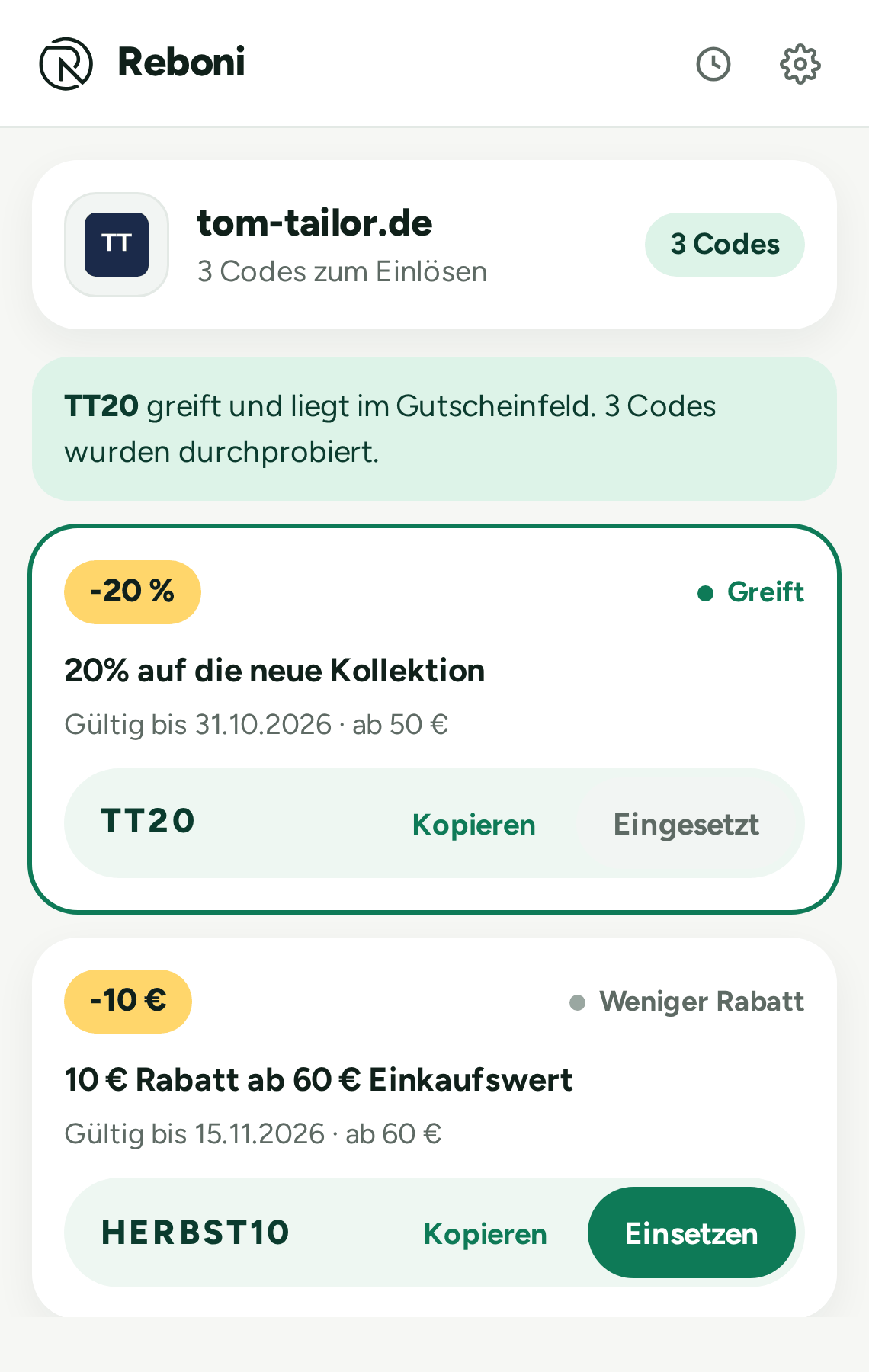
The code comes by itself
In the basket, Reboni tries all known codes for the shop one after the other and keeps the one that saves the most. You don't have to search or copy anything.
-
Recognises the shopThe number on the Reboni icon shows how many codes there are for the open page.
-
Applies the best codeWhat's measured is the real saving in the basket, not the text of the voucher.
-
Or choose yourselfOne click on the icon shows all codes to copy or apply.
How to install the extension
Ready in three steps – choose your browser.
-
Add the extension
Click “Download” above – you'll be taken to the Chrome Web Store.
- Click “Add to Chrome”
- Confirm with “Add extension”
- Installation only takes a few seconds
-
Pin the extension
After installation, the Reboni icon appears in your browser bar.
- Click the puzzle icon at the top right
- Pin Reboni for quick access
- The extension is ready to use straight away
-
Save in the shop
Visit an online shop – Reboni shows you matching vouchers.
- No more searching for codes
- Vouchers appear in the bubble
- Copy and redeem with one click
-
Install the add-on
Click “Download” for Firefox above to go to Firefox Add-ons.
- Click “Add to Firefox”
- Confirm the permissions
- Installation is done in seconds
-
Activate the add-on
Reboni appears automatically in your add-on bar.
- The Reboni icon is visible straight away
- Right-click opens the settings
- No further set-up needed
-
Get started right away
Visit your favourite online shop and save on your purchase.
- Reboni recognises supported shops
- Vouchers appear in the bubble
- Save time searching for codes
-
Get the extension
Click “Download” for Edge above to go to the Microsoft Edge Add-ons store.
- Click “Get”
- Confirm with “Add extension”
- Installation starts automatically
-
Pin to the toolbar
Pin Reboni for easy access.
- Click the extensions icon
- Choose “Show in toolbar”
- Reboni is now always visible
-
Just shop
Shop as usual – Reboni lets you know when there are codes.
- Works in supported shops
- No more searching for vouchers
- Copy the code and paste it at checkout
Installation FAQ
The extension isn't working?
Make sure the extension is enabled. Click the Reboni icon and check the status. If necessary, disable the extension and enable it again.
The icon isn't visible?
The Reboni icon may be hidden. Click the puzzle icon (Chrome and Edge) or the add-ons icon (Firefox) and pin Reboni to the toolbar.
No vouchers are shown?
Reboni only works in supported shops. In our Shop page you'll find the complete list. Some shops have no active vouchers right now.
Which permissions does Reboni need?
Reboni needs access to shop websites to recognise the shop and show matching vouchers. More about this in our Privacy Policy.
Save on the go too
With the Reboni app you also have your vouchers on your phone – with shop stories, favourites and a built-in shop browser.
Looking for a specific shop? You'll also find all codes directly on the website.
View all shops